Skip to content

Snap a receipt.
Pulse does the rest.

Photograph a receipt on your phone and Pulse works out the details, picks a category and calculates the value – with no typing required!

View the help guide

Included with every package

Receipt scanning is included with every package – view limits

app photo receipt

Key features...

Snap and go

Photograph your receipt on your phone, right there in the shop – no paperwork to carry home

Reads the details

Pulse reads the retailer, the date and the amount, then suggests the right expense category

VAT handled for you

VAT registered? The net and gross split is calculated automatically as the expense saves

Stored with the expense

The image is filed against the expense itself, so your receipt and your record stay together

How it works...

Take a Photo

Open the MalgraBooks app on your phone and tap to add an expense, then point your camera at the receipt.

It works just as well on a crumpled till receipt as a tidy one, and you can do it while you are still standing in the shop.

Check What It Read

Pulse reads the receipt and fills in the details for you – the retailer, the date, the amount and a suggested category.

Everything stays editable, so if something is not quite right you can change it before you save. Nothing is recorded until you say so.

Save and Done

Tap save and the expense goes straight into your accounts with the receipt image attached.

It appears on your reports and in your tax figures immediately, so there is nothing to tidy up later.

Your receipts, safely stored

Every receipt you scan is stored against the expense it belongs to, so your record and your evidence never drift apart. Receipts are held securely in the cloud and pulled up on demand – whether you are checking an expense on your phone in the shop, or reviewing a full year of figures on your laptop.

Your storage allowance is shared between scanned receipts and any other documents you upload, and you can see how much of it you have used at any time from the Storage area of your account. If you need more room, extra space can be added to any package.

Because the image sits with the record rather than in a drawer, a question from HMRC years later means opening the expense and finding it right there. No shoebox, no searching.
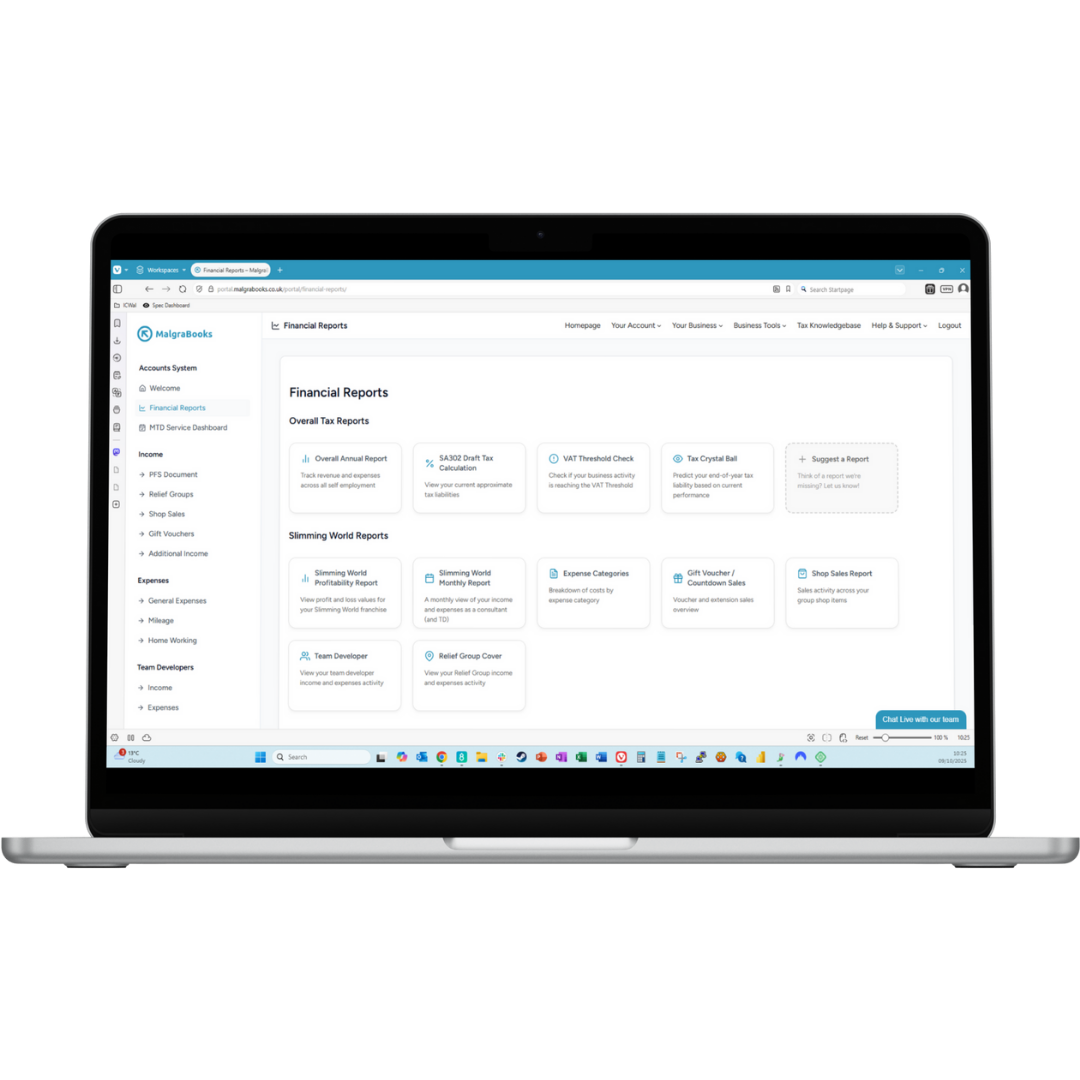
Mb Pulse Laptop View

Frequently asked questions

How many receipts can I scan each month?

It depends on your package.

Slimming World Consultant Packages

  • Essentials, Essentials + MTD and Essentials + Tax Return each include 25 scans a month.
  • Essentials Complete includes 50.
  • Premium and our VAT Service are unlimited.

Small Business

  • Small Business, Small Business + MTD and Small Business + Tax Return each include 25 scans a month.
  • Small Business Complete includes 50.
  • VAT Service is unlimited.

Your allowance resets at the start of each month, and you can always add expenses manually once you have used it.

What if Pulse reads something wrong?

No problem – nothing is saved until you tap save. Every detail Pulse fills in stays editable, so you can correct the amount, change the category or adjust the date first. It is a head start, not a decision.

What kind of receipts does it work with?

Anything you can photograph.

Till receipts, handwritten ones, or a receipt showing on another screen all work.

Faded thermal receipts are the usual troublemaker, so it is worth scanning those while they are still fresh!

Which packages include receipt scanning?

All packages include receipt scanning at no extra cost with every package we offer – only the monthly allowance differs between them.

Do I still need to keep the paper receipt?

HMRC asks you to keep records of your business expenses, and a clear digital image counts as a record.

Once the receipt is stored against the expense in Pulse, you do not need to keep the paper copy as well.

Does it handle VAT?

Yes. If you are VAT registered, Pulse calculates the net and gross split as the expense is saved, so your VAT return figures stay right without any extra work from you.

Can I still add expenses manually?

Absolutely. Scanning is there to save you time, not to replace anything.

You can add, edit and delete expenses as normal using your dashboard.

Back To Top